
We are so excited for some of these brand new features in 1.15 so let us take a look!

1.) Triggers
“Finally” you might say! We are thrilled about this release as we bring to Live Time one of our MOST REQUESTED FEATURES.
TLTR – You can now restore a Preset or advance to a Preset based off a timer value.
This is huge and brings to fold what we set out to do when we created the Presets addition of Live Time a year ago. Live Time 1.15 for macOS also includes a ton of bug and stability improvements as we ramp up the internal workings for our v2 roadmap.
Let’s walkthrough how it works.
Triggering is part of our “Preset Engine” activated on the Control Panel through a one-time In-App Purchase. You can create Presets for almost all layout states and then restore them on demand. And now, you can restore a Preset via a trigger with two different ways.
Also, with this release, we added a simple duplicate button along with the new UI to create a trigger. When a trigger is Active, a green highlight will show. This way, you can have multiple triggers and safely turn them on or off. Triggers will persist between application launches, but you will need to activate them via the checkbox as needed.
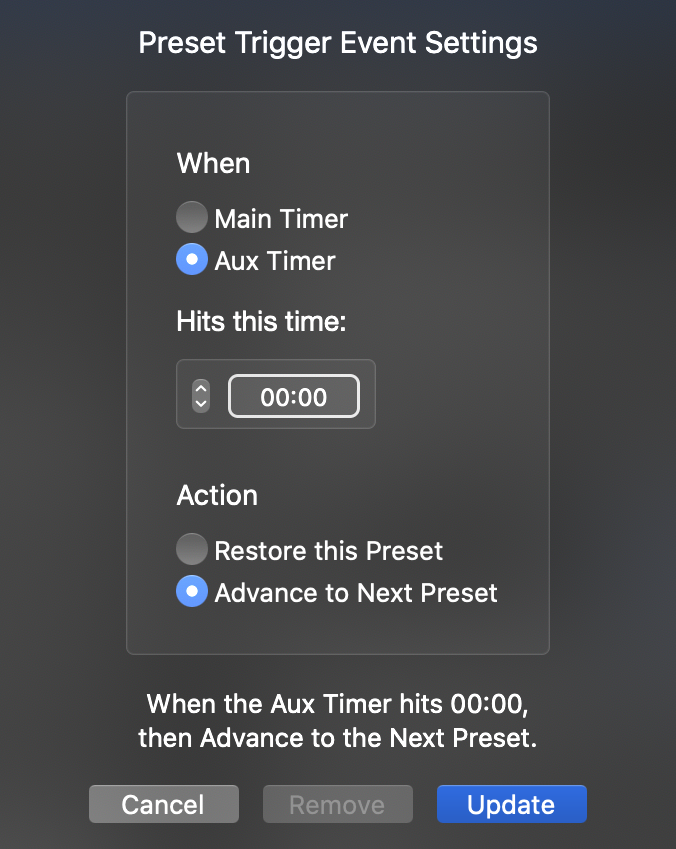
2.) Auto-Restore
When a timer is running, you can make the selected Preset restore. Note: You can only have one Auto-Restore per timer, per time. For instance – you can only have one Auto-Restore where the Main timer hits 0:00. As you will learn below, Auto-Advance will supersede Auto-Restore if they are at the same time.
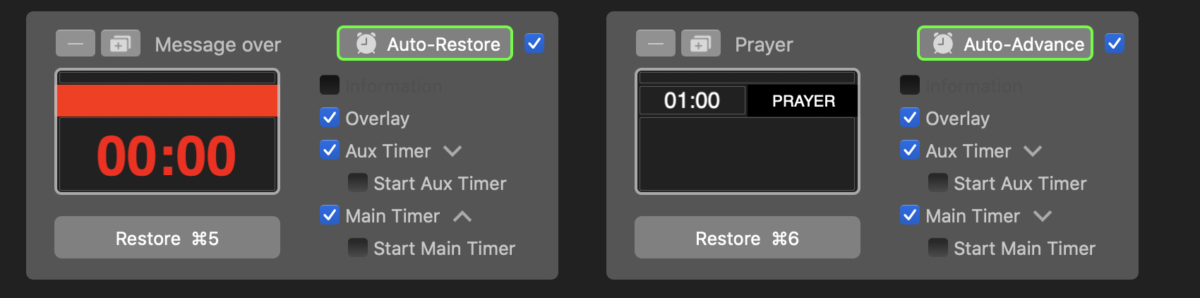
3.) Auto-Advance
When a Preset is active, designated by the green outline around the Preset, a trigger can be created to automatically advanced to the next Preset. As mentioned above, Auto-Advance precedes Auto-Restore as far as a priority. So now, you could auto-cue your whole service or show!

Other Notes:
Now with triggering, you can effectively accomplish so many things with Live Time. Simply create your Preset of what you want Live Time to do or look like, set your timer to restore mode, then create a trigger. So much fun!
Comments
0 comments
Article is closed for comments.